
Layout
Tap Layout in the bottom bar. The panel opens over the bottom of the table and every change shows at once. What it shows depends on the selection.
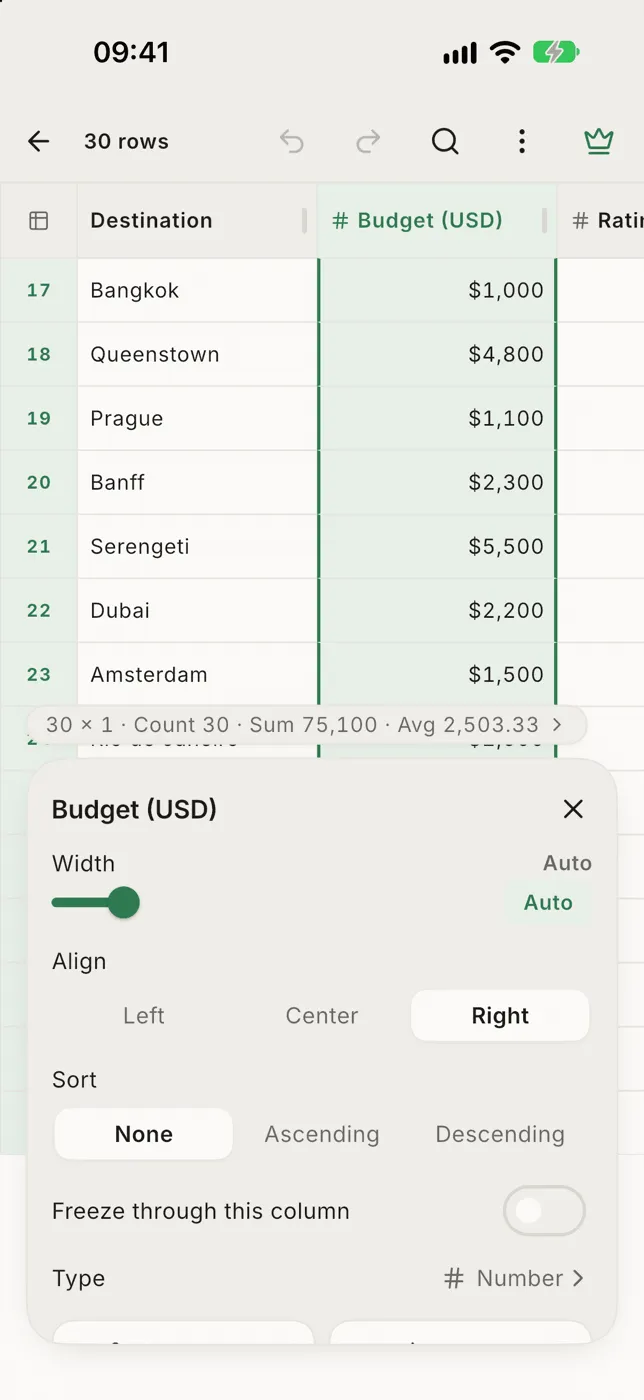
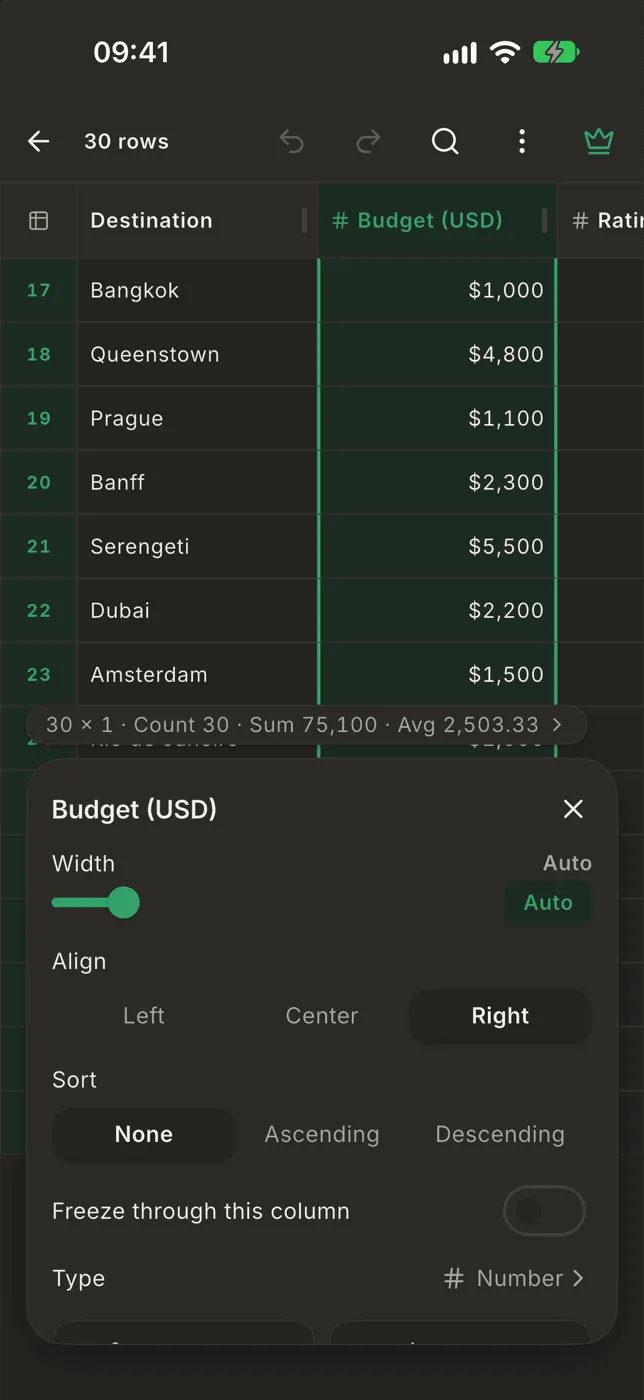
With a column selected
Section titled “With a column selected”Tap a column’s name first, then Layout. Tap another column’s name to switch the panel to that column.
- Width: drag the slider. Auto puts it back to the default.
- Align: Left, Center or Right.
- Sort: None, Ascending or Descending, then Then by this to add it to a multi-column sort.
- Freeze through this column: keeps this column and those left of it in place while you scroll sideways.
- Type: the column type.
- Rename column and Hide.
Select several columns to change them together.
With nothing selected
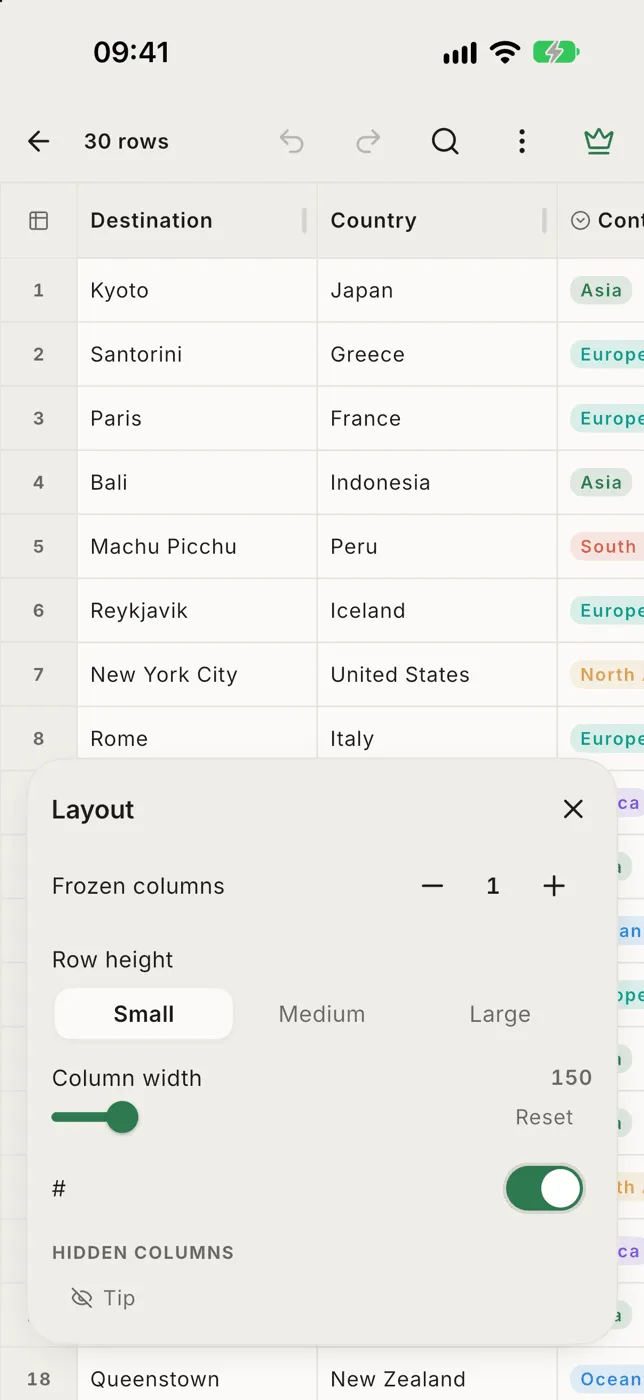
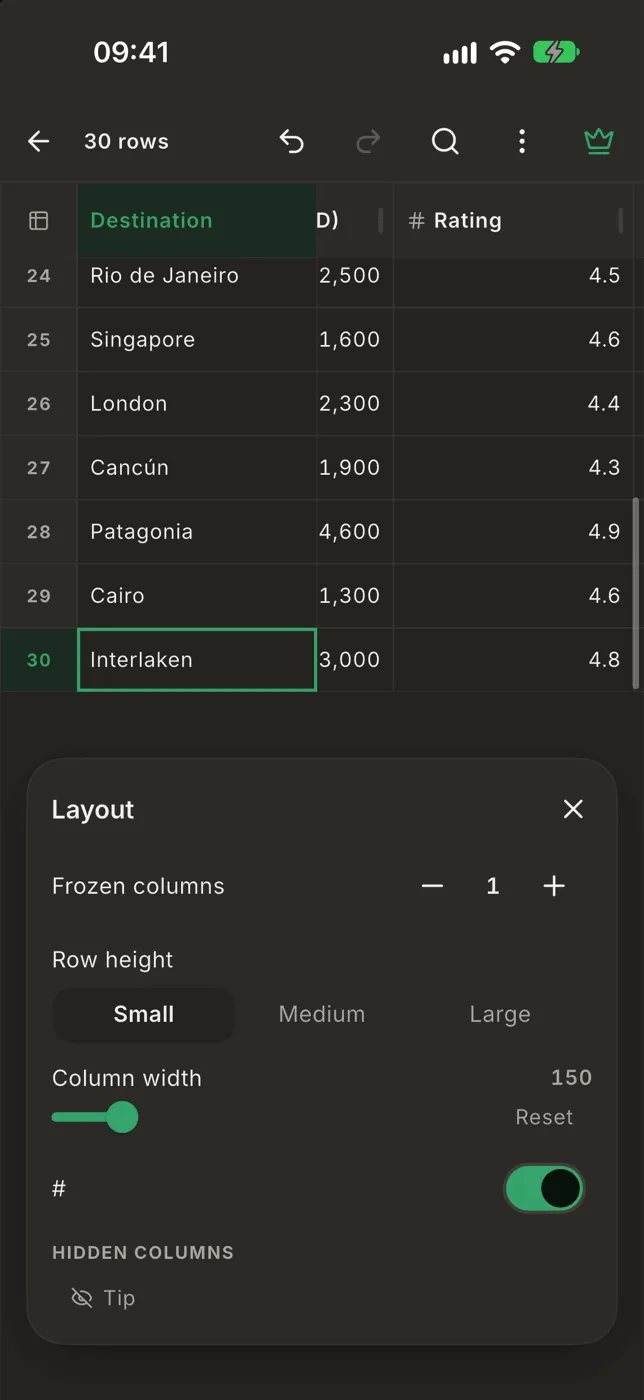
Section titled “With nothing selected”- Frozen columns: how many columns stay put on the left.
- Row height: Small, Medium or Large.
- Text size: tap − or + to make the table’s text smaller or bigger (10 to 20). Rows grow with the text. Reset goes back to the normal size.
- Wrap text: long text runs onto more lines instead of being cut off. How many lines depends on the row height: 2 for Small, 3 for Medium, 5 for Large. Numbers, dates and other typed columns stay on one line.
- Column width: the default width for every column. Reset puts it back.
- #: shows or hides the row numbers.
- Hide toolbars while scrolling: the top and bottom bars slide away as you scroll down and come back when you scroll up. See Reading the table. This one is for the whole app, not just this file.
- Hidden columns: tap one to show it again, or Show all.