
Reading the table
The screen
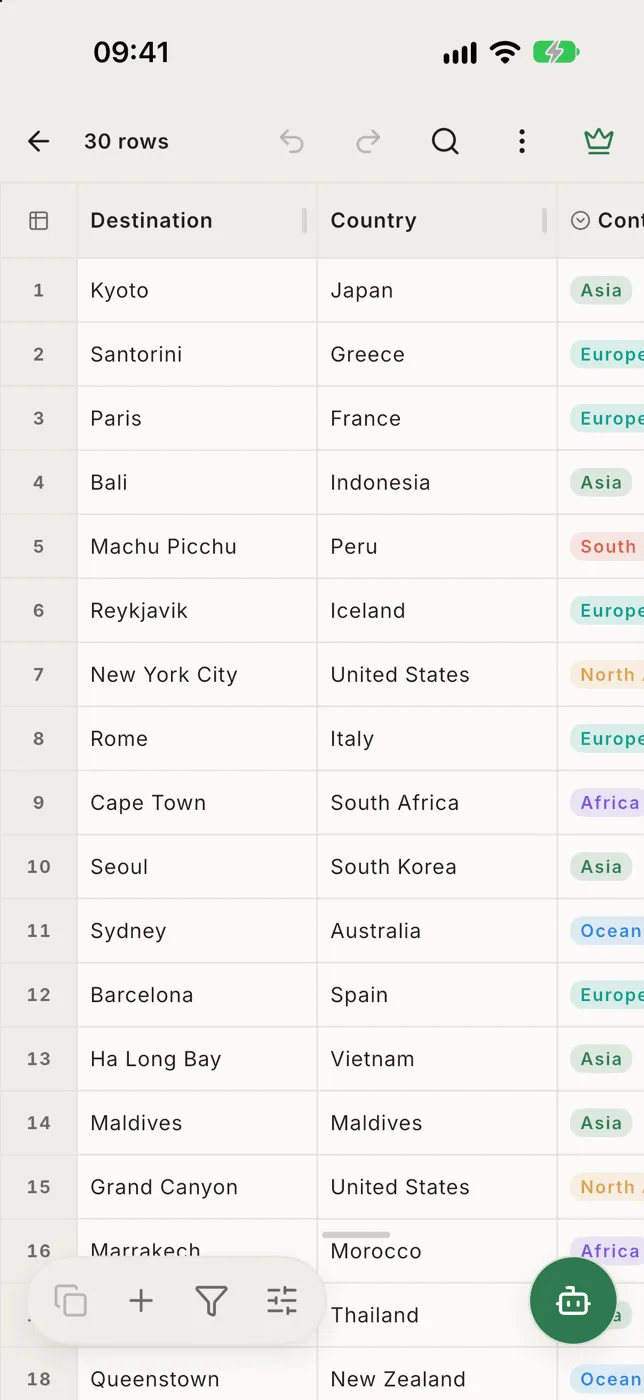
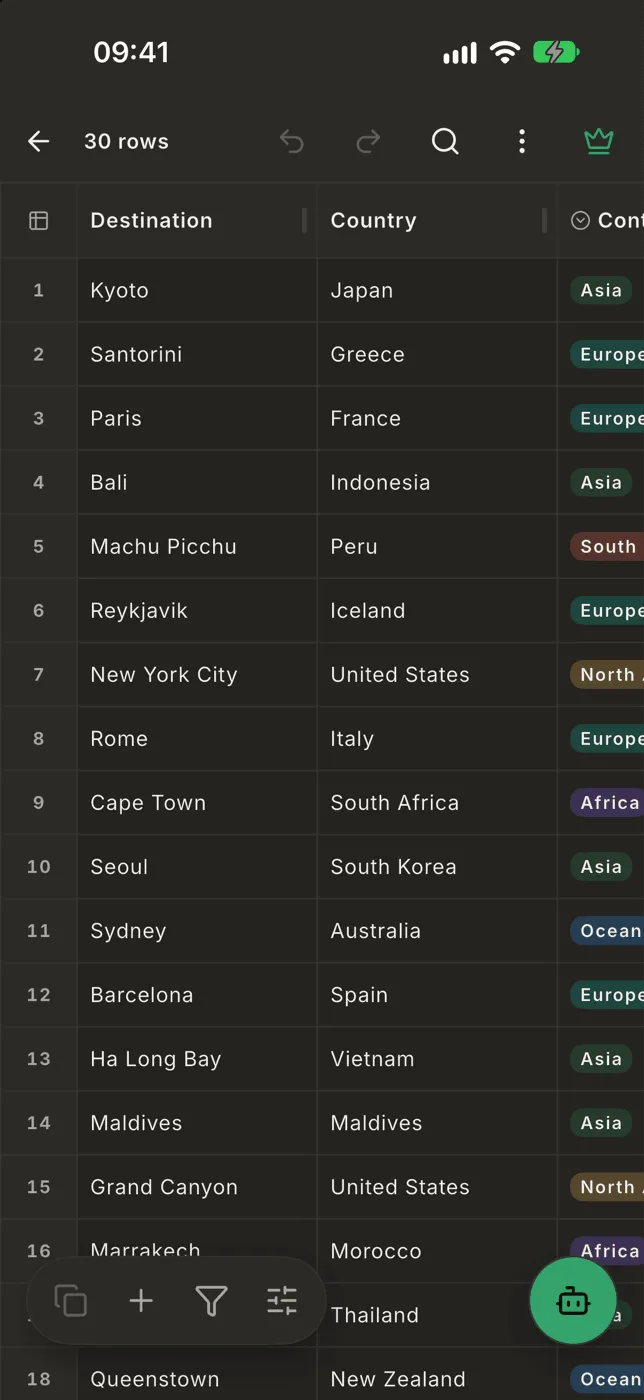
Section titled “The screen”- Top bar: back, the file’s row count, then undo, redo, search and ⋯ (more).
- The table: column names across the top, row numbers down the left. Drag to scroll in any direction.
- Bottom bar: Copy, + (the Edit menu), Filter and Layout, with the round assistant button beside it.
Scroll a long file
Section titled “Scroll a long file”A scrollbar appears on each edge while the table moves. Drag the thumb to jump; the bubble next to it says which row you’ll land on. To go straight to a row, tap ⋯ → Jump.
More room for the rows
Section titled “More room for the rows”Scroll down and the top bar and the bottom bar slide out of the way, so the table fills the screen. To bring them back:
- scroll up a little,
- go back to the first row, or
- press back (it brings the bars back before it leaves the file).
With a filter on, a thin strip under the status bar still says how many rows it shows. Tap it to bring the bars back.
Don’t want this? Turn off Hide toolbars while scrolling in Layout. The bars never hide while a panel, search or the keyboard is open, or while VoiceOver or TalkBack is on.
Read a whole cell
Section titled “Read a whole cell”Tap a cell. A line above the bottom bar shows its column and its full value,
for example Name · John Appleseed of 1 Infinite Loop….
- A cell with several lines shows ⏎ where each line breaks.
- An empty cell reads Empty.
- Very long values end in
…in the table; the line shows more.
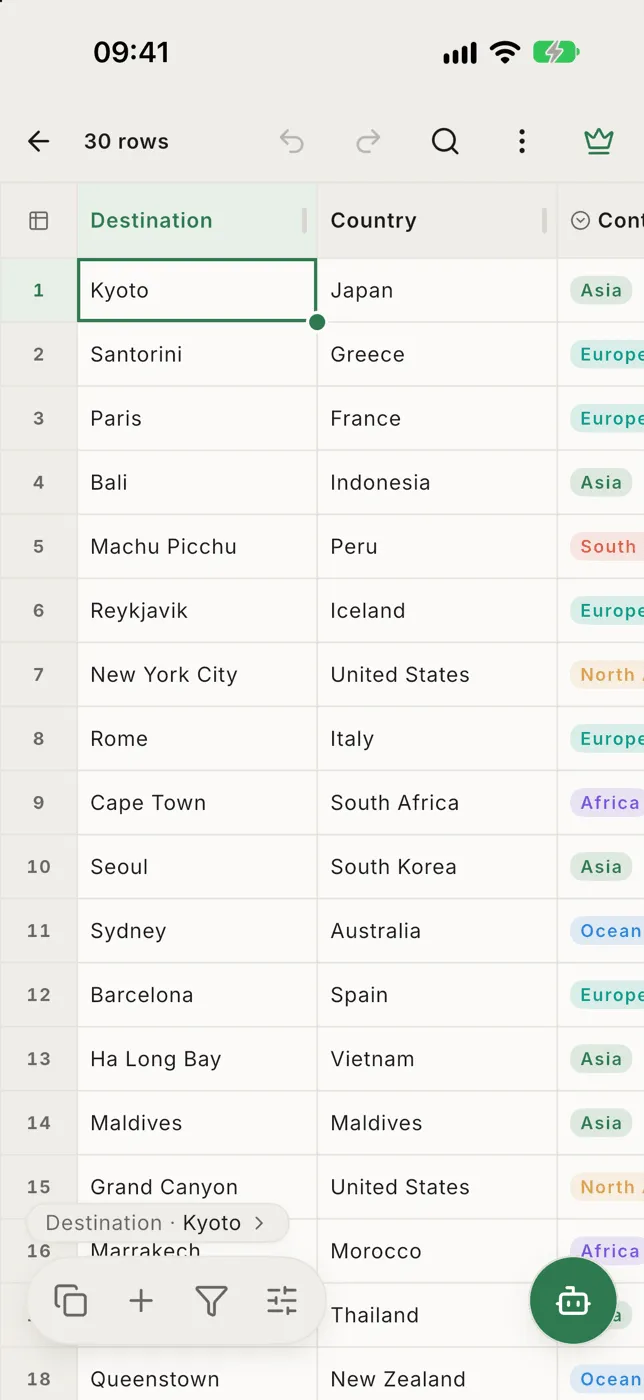
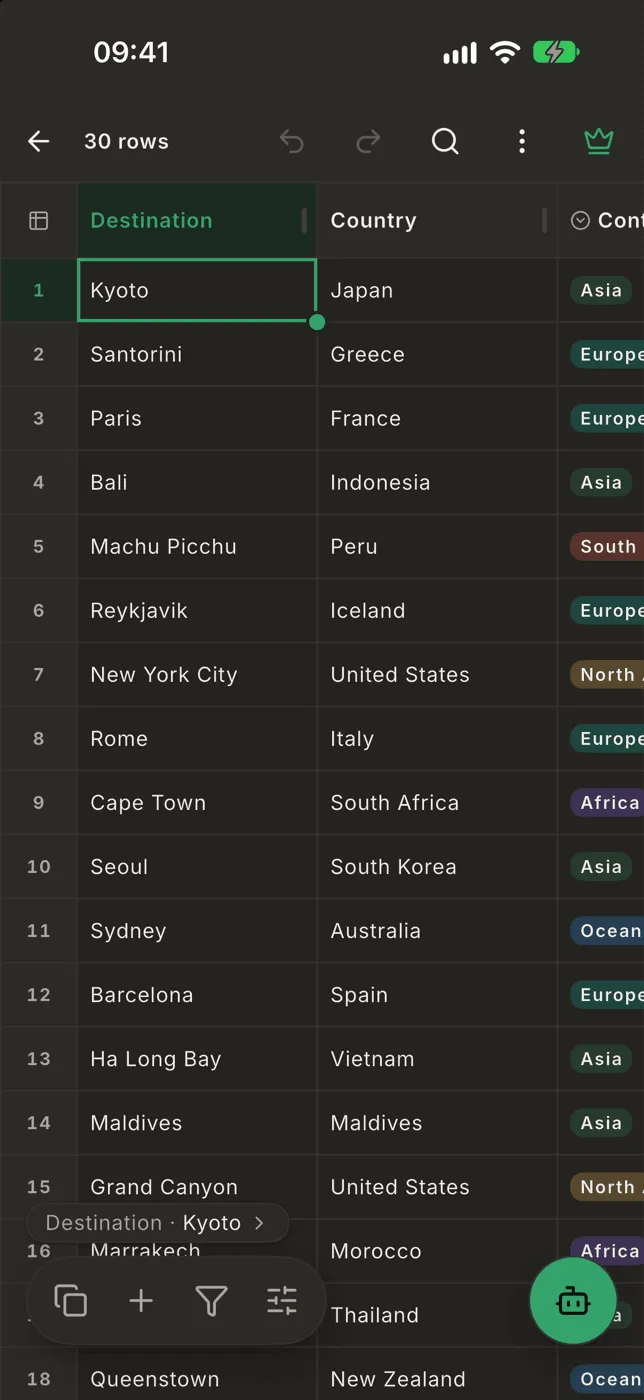
Tap that line to open the whole row as a form, with every field in full. See The row form.
Tap and hold
Section titled “Tap and hold”| Where | Tap | Hold |
|---|---|---|
| A cell | Select it. Tap again to edit. | The Edit menu: Open row, Copy, Cut, Clear, Filter by this value… |
| A row number | Select the row | The Edit menu for rows: insert, move, delete |
| A column name | Select the column | Sort by it (hold again to flip, a third time to clear) |
To close a menu without choosing, tap anywhere outside it.
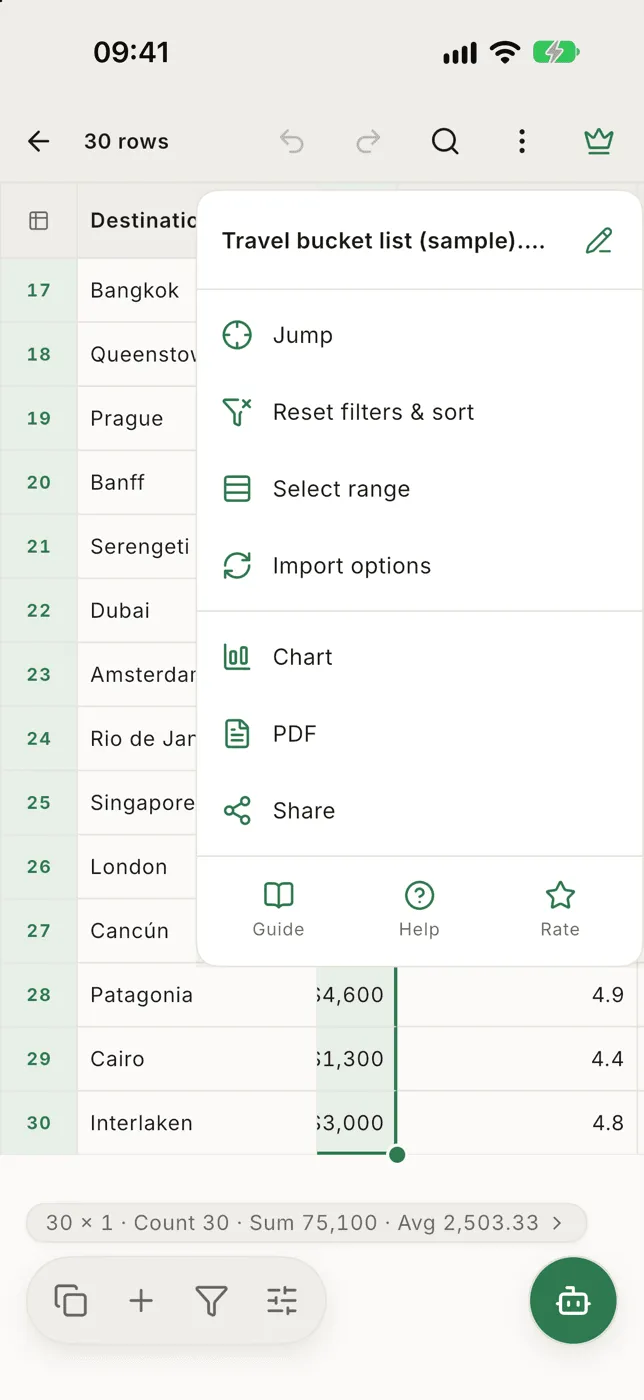
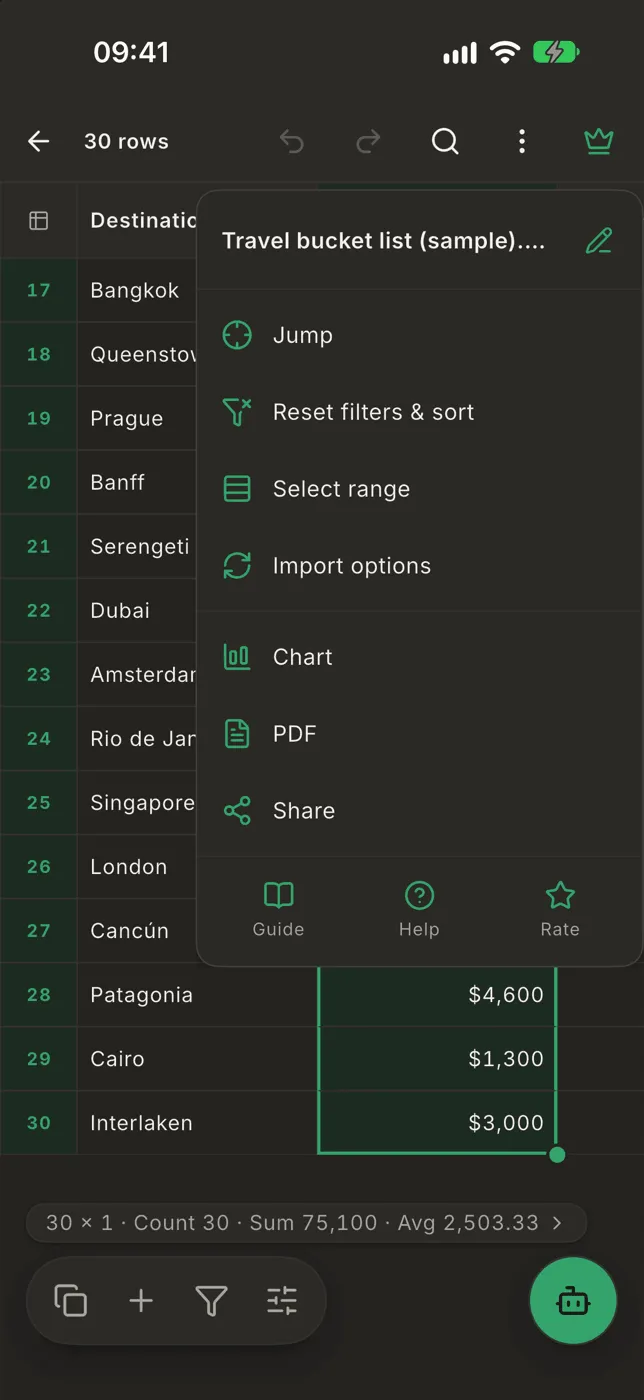
The ⋯ menu
Section titled “The ⋯ menu”- The file name, with a pencil to rename it
- Jump, Reset filters & sort, Select range
- Import options (and Reload from original for a file picked from Files or a cloud drive)
- Chart, PDF, Share
- Guide, Help and Rate
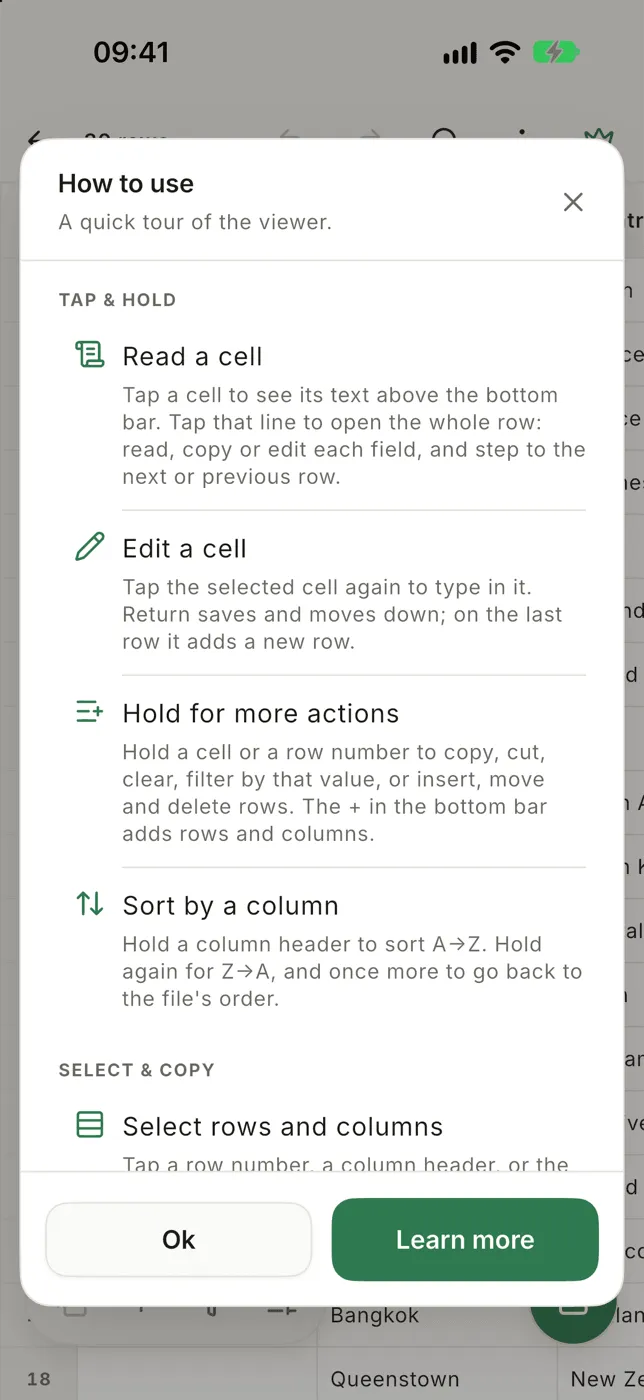
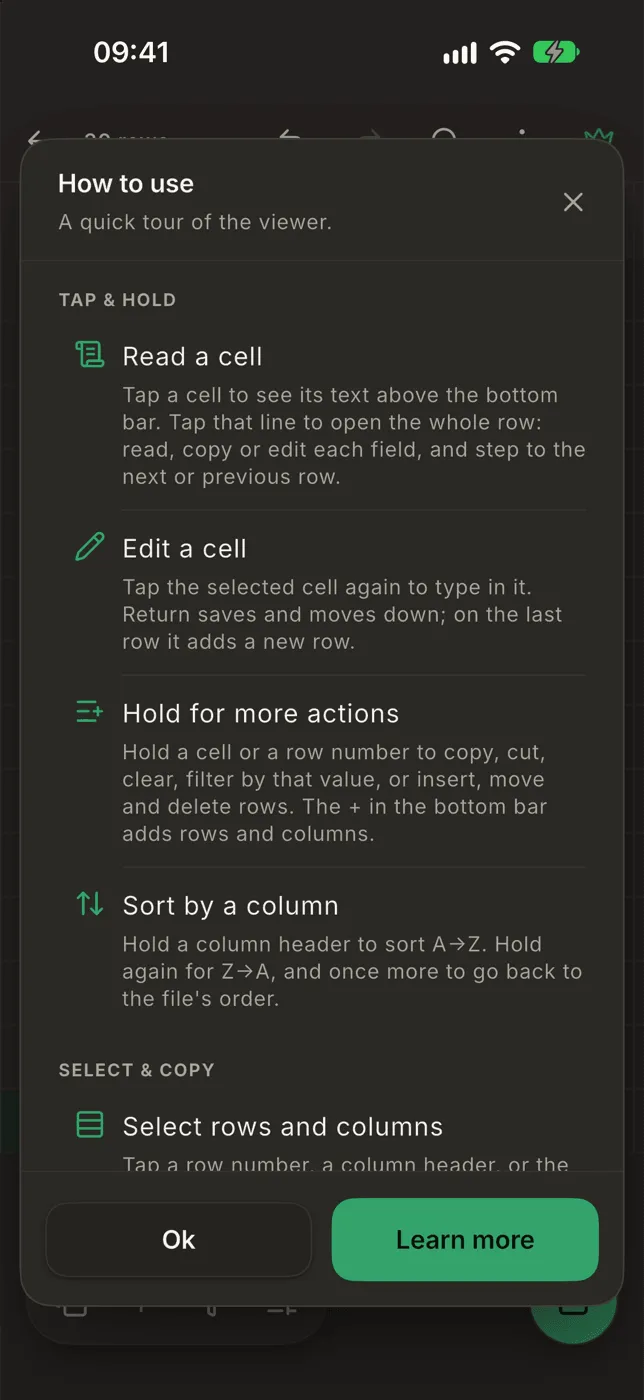
Guide shows a short list of gestures again. It opens on its own the first time you open a file.